If you have used a Windows PC in Vietnam for any length of time, you almost certainly know WinRAR: right-click a file, pick “Extract Here”, done. So do we. After more than a decade, that move is pure reflex.
GenZip started with a very ordinary question: if we stop using WinRAR, what do we use instead, without relearning everything?
Good habits, but the licence isn’t free
WinRAR is commercial software. You get a trial period, and after that you are expected to buy a licence. Many people simply keep using it and close the “please purchase” reminder every time. Over the years, it is easy to start thinking of an archiver as something that is “free anyway”.
That is changing. In offices and companies, software licence checks are getting stricter. A PC running paid software without a licence is a real risk, not just an annoying dialog. And for individuals, using software under its proper licence is a way of respecting the people who make it.
So the simple answer is to switch to a free archiver. Simple on paper.
Free alternatives: usable, but not comfortable
We tried the usual options and kept running into the same thing: they work, but they don’t feel as comfortable.
- 7-Zip is free, open source and compresses very well. It is an excellent engine, and GenZip itself runs on it. But its interface keeps a style from many years ago, and many everyday tasks go through fairly technical dialogs.
- Windows’ built-in compression is handy for opening files quickly, but options are limited: no passwords, no splitting, little control when extracting.
- Some other free archivers come with ads, ask for an account, or have cluttered interfaces.
- On Windows 11, quite a few archivers only appear in the classic “Show more options” menu, which means one extra click every time you extract.
For someone used to one way of working for years, those small differences add up to a reason to… go back to the unlicensed copy.
The decision: a new archiver that follows old habits
Instead of asking people to change their habits, we went the other way: build software that fits the habits people already have, genuinely free, and safe by default.
Three principles from day one:
- No relearning. Commands are where you look for them, named the way you remember.
- Don’t reinvent compression. Compression and extraction are handled by the official 7-Zip engine, proven over decades. GenZip takes care of the interface, safety and everyday conveniences.
- Free, with no catch. No ads, no account, no data collection.
The right-click menu: where habits live
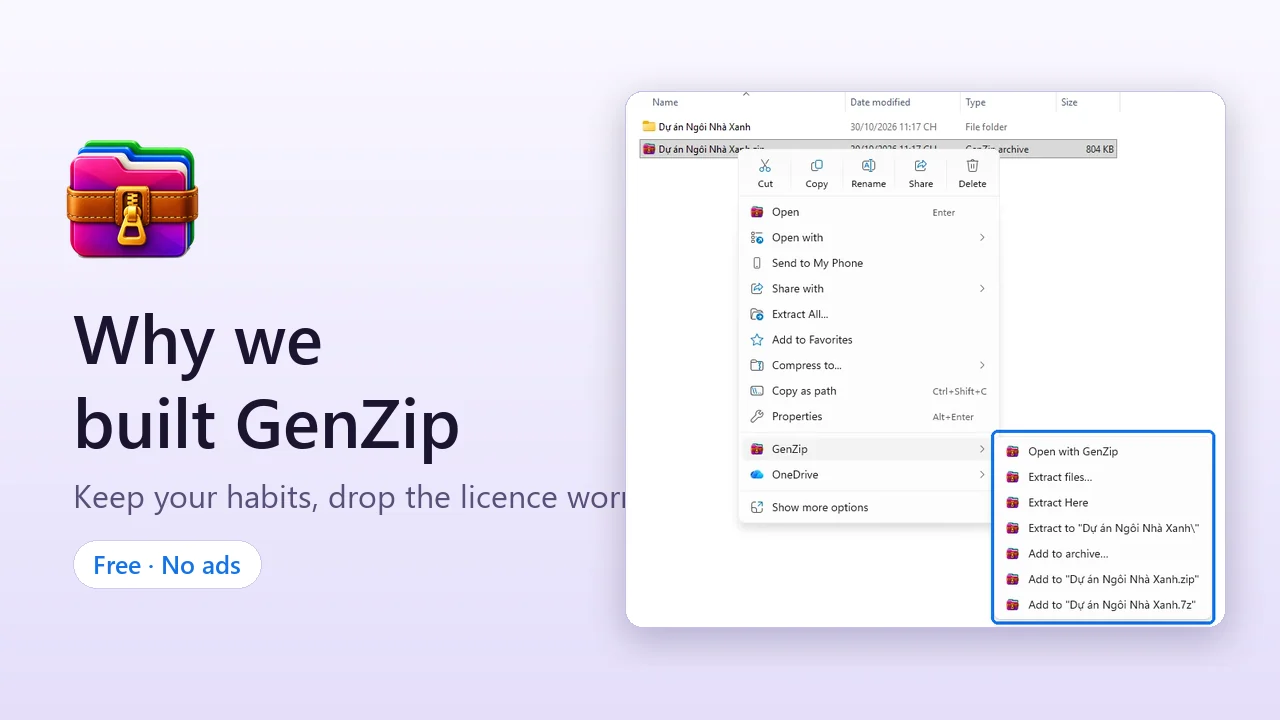
Most of the time you don’t open an archiver at all. You right-click. That is why GenZip sits in the top-level Windows 11 right-click menu, no “Show more options” needed.
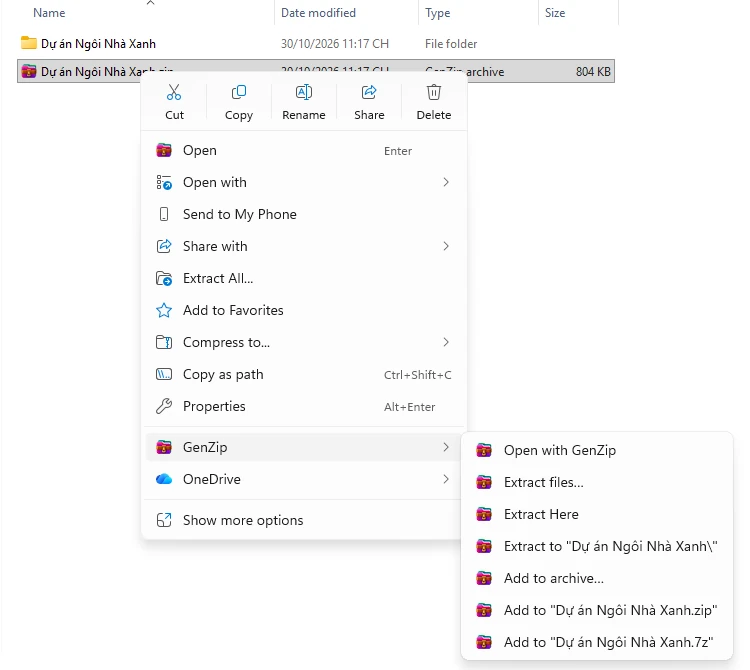
For archives you get the familiar commands: Extract Here, Extract to “Folder name", and Extract files… to choose a destination. For regular files and folders, one click gives you “Name.zip” or “Name.7z”.
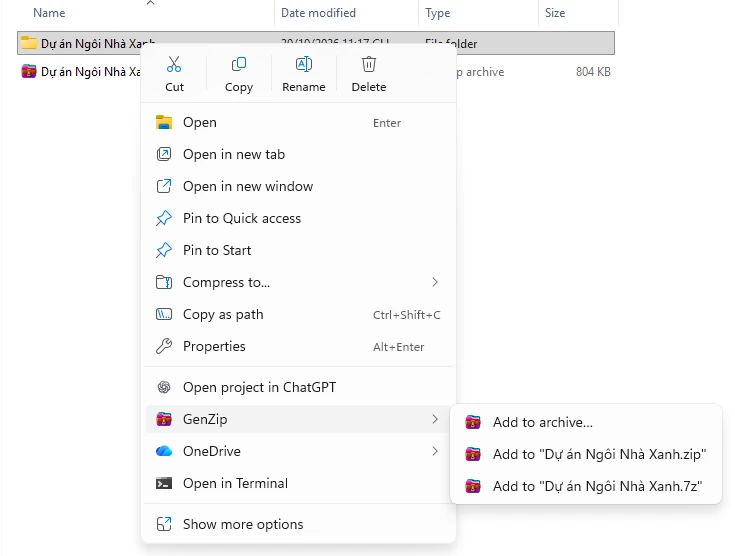
How to turn it on and make GenZip your default is covered in Make GenZip your default archiver.
A clean window that does the job
Double-click an archive and you see its contents straight away, with a familiar toolbar: Add, Extract, Test, View, Delete. Drag files onto the window to add them. Press F3 to preview images or text without extracting.
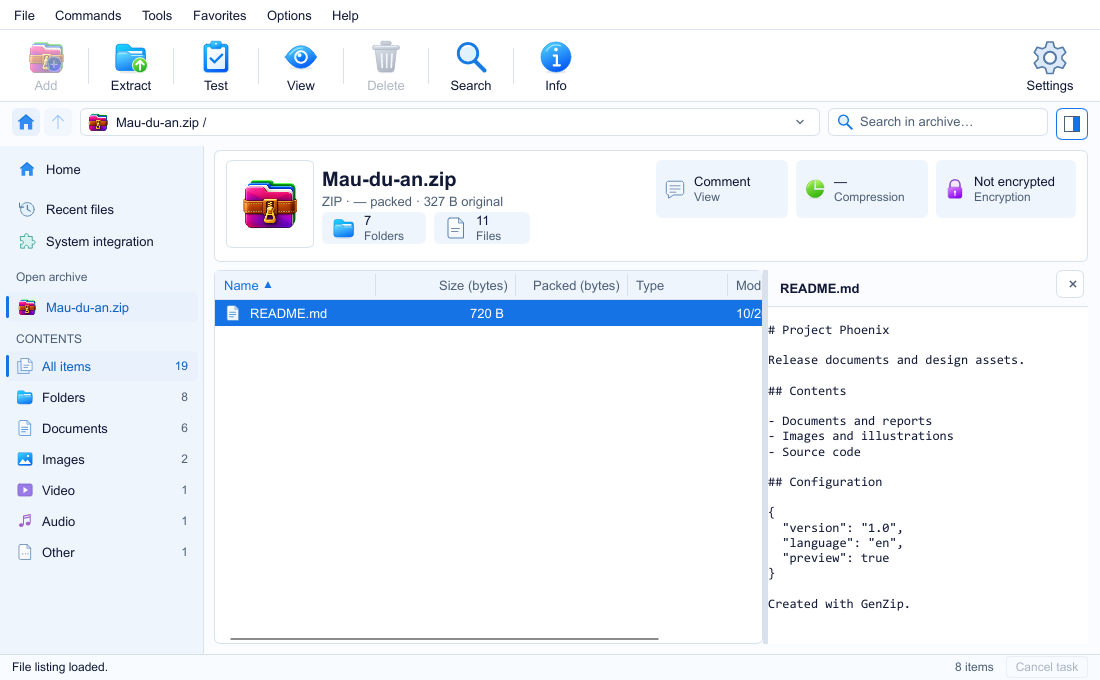
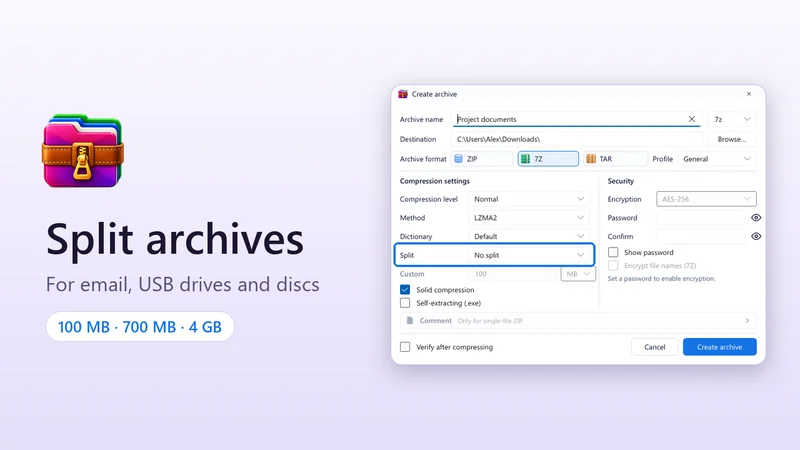
GenZip opens ZIP, RAR/RAR5, 7Z, TAR, ISO and many other formats, so the RAR files you receive every day still open as usual. When creating archives, you can choose ZIP, 7Z or TAR, set an AES-256 password, split into parts, or make a self-extracting .exe.
Things the old habits never had
Since we were starting from scratch, we added things you used to have to watch out for yourself:
- Safe extraction: dangerous paths are blocked, “zip bombs” are limited, and Windows keeps warning you about files that came from the internet. Details in How to open downloaded archives safely.
- A task queue: right-click to extract several files in a row and GenZip lines them up instead of opening a dozen windows.
- Real pause and integrity testing, with an exportable report.
- Speed on par with 7-Zip, because it runs 7-Zip’s own engine. Real measurements are on the Speed page.
Where is GenZip now?
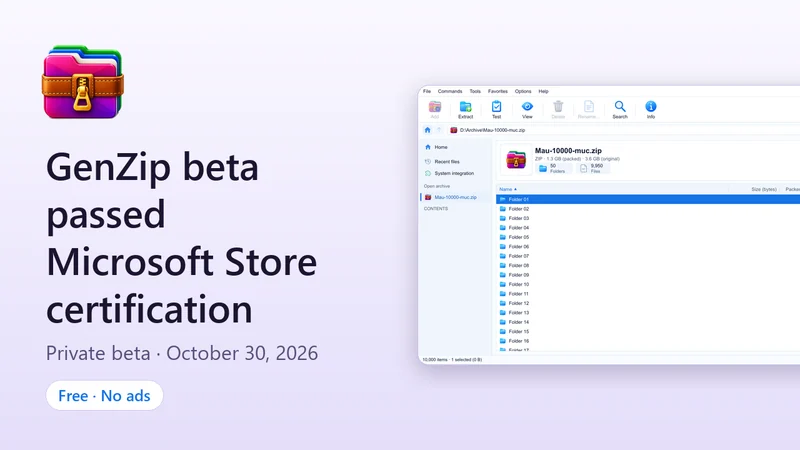
GenZip 0.9 beta has passed Microsoft Store certification and is being tested with a group of users. GenZip is released only through Microsoft Store: installs and updates are handled by the Store, and there is no standalone installer to download.
GenZip can’t replace your memories of WinRAR. The goal is smaller and more practical: right-click, extract, done, the way you always have, with software that is free and properly licensed.
See all features or the Download page.
WinRAR is a trademark of win.rar GmbH; 7-Zip is software by Igor Pavlov. GenZip is an independent product and is not affiliated with either.