You can’t email a 3 GB folder, and copying a 6 GB file to a FAT32 USB drive fails. The simple fix is to split the archive into smaller parts.
Splitting when you create an archive
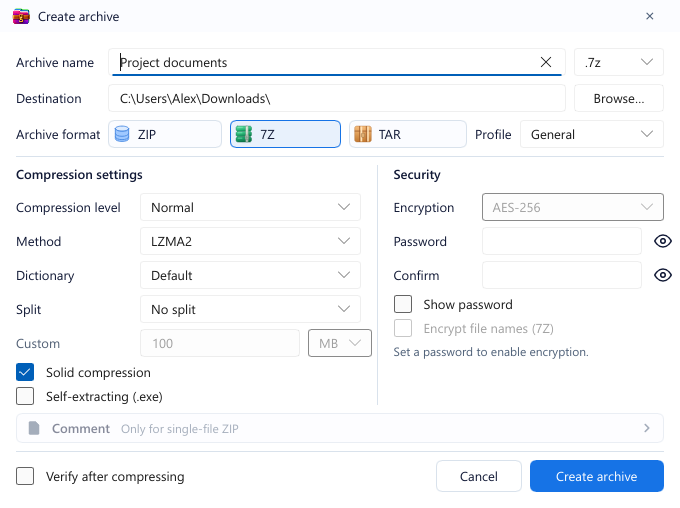
In the Create archive dialog, the Compression settings column has a Split option:
| Option | Good for |
|---|---|
| 100 MB | Email or services that limit the size of each file. |
| 700 MB | The familiar CD size, or uploading in even chunks. |
| 4 GB (FAT32) | USB drives and memory cards formatted as FAT32, which can’t hold files larger than 4 GB. |
| Custom | Any number, in MB or GB. |
GenZip creates consecutive files such as Project.7z.001, Project.7z.002, Project.7z.003…
Note: self-extracting .exe archives can’t be split. If you need to split, use regular 7Z or ZIP.
Joining when extracting
The recipient doesn’t have to join anything by hand:
- Keep all parts in the same folder with their original names.
- Open the first part (
.001) in GenZip. - Extract as usual; GenZip reads the following parts automatically.
If a part is missing or a downloaded part is damaged, extraction reports an error. Use the Test button to be sure before deleting the originals.
Tips
- Compressing and splitting is one step. You choose split volumes right in the create dialog; no separate file splitter needed.
- Pick 7Z for a smaller total size, which means fewer parts. If the recipient can’t open 7Z, use ZIP.
- Passwords still work with split archives: the password applies to the whole set.
See also: Create an archive.