After installing GenZip you’ll want two things: double-clicking an archive opens it in GenZip, and right-clicking gives you extract commands. Here’s how to set up both on Windows 11.
Why doesn’t GenZip make itself the default?
Windows 10 and 11 don’t let apps set themselves as default; only you can choose. It’s a Windows protection so software can’t “grab” your files. In the Microsoft Store build, file associations and the right-click menu come with the package; you just pick GenZip.
Make GenZip open archives
Quick way, one file type at a time:
- Right-click a
.zipfile (or.rar,.7z…), choose Open with → Choose another app. - Select GenZip, then click Always.
- Repeat for other file types you use.
Several types at once:
- Open Settings (Windows + I) → Apps → Default apps.
- Find GenZip in the list and open it.
- For each extension (
.zip,.7z,.rar,.tar,.gz,.bz2,.xz,.zst,.iso,.cab,.wim,.001), choose GenZip.
Tip: you don’t have to set them all. For example, if you want .iso files to keep opening with Windows’ built-in disc mounting, leave that one alone.
Using the right-click menu
On Windows 11, GenZip’s commands appear right in the first-level context menu:
On archives:
- Open with GenZip
- Extract files…: choose where to save and how to handle duplicates.
- Extract here: straight into the current folder.
- Extract to “
" : creates a folder named after the archive, the tidiest option.
On regular files and folders:
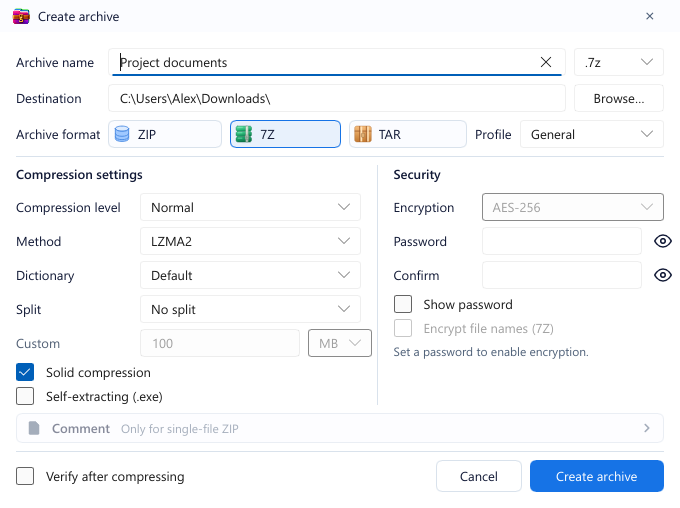
- Add to archive…: opens the Create archive dialog.
- Add to “
.zip” and Add to “.7z” : compress immediately, no questions asked.
The classic menu (“Show more options”) has equivalent GenZip commands.
Several commands in a row are fine
If you right-click and extract several archives in quick succession, GenZip doesn’t run a pile of windows at once; it adds them to a queue and processes them one by one. View and reorder the queue in Tools → Task queue.
See also: Right-click menu and file associations.