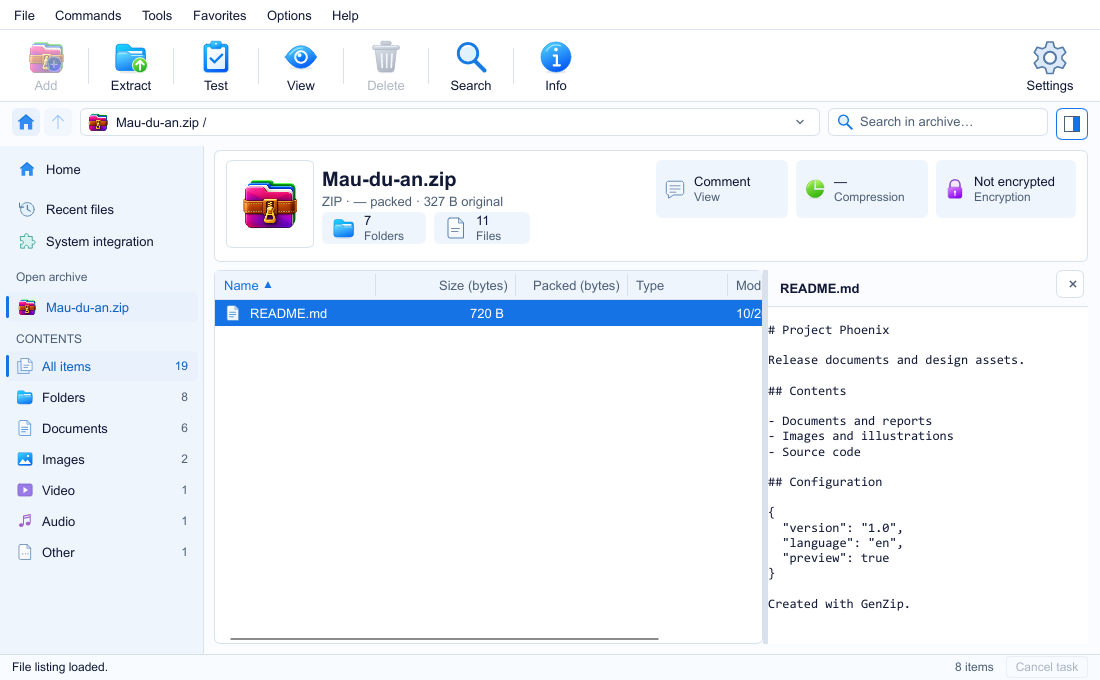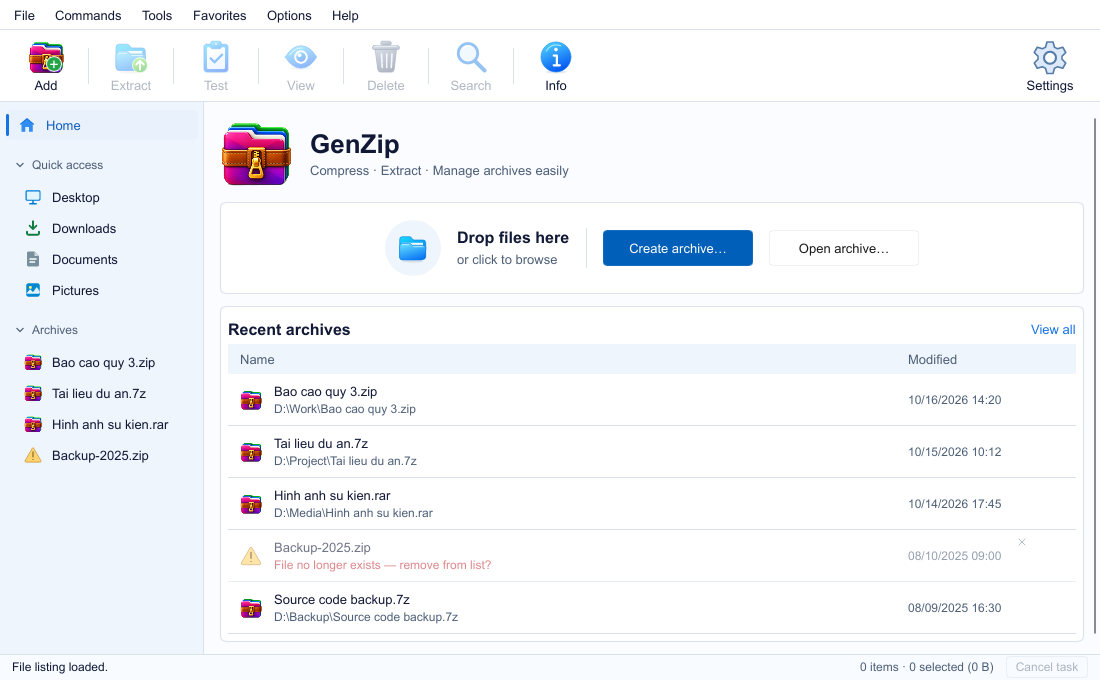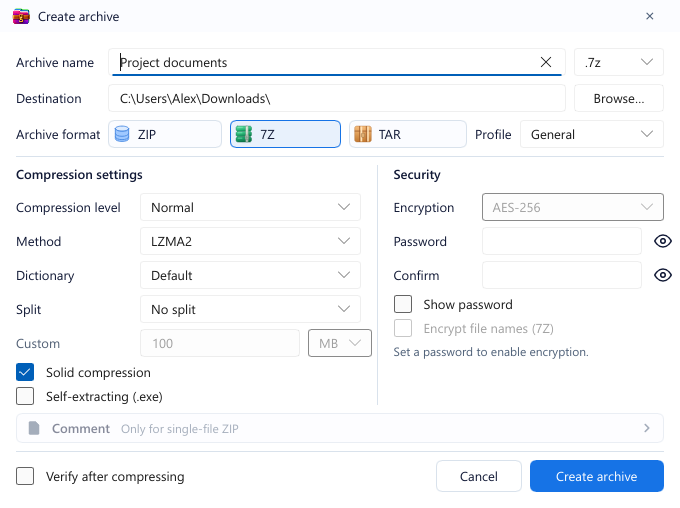
When you click Create archive, the first choice is ZIP, 7Z or TAR. There is no “best” format, only the one that fits the job.
Three formats, three jobs
ZIP: sending to others. ZIP opens on almost every computer and phone without extra software. If you are not sure what the recipient uses, pick ZIP. It is also GenZip’s default.
7Z: smallest size. 7Z uses LZMA2 and usually produces noticeably smaller files than ZIP, especially for documents, source code and text data. Good for long-term storage or sending large files. The recipient needs an archiver that supports 7Z.
TAR: bundle without compressing. TAR packs many files into one without reducing size. Useful with Linux systems or when you just need a single file.
Built-in profiles
Next to the format cards is Profile, so you don’t have to tune each setting:
| Profile | Use it when |
|---|---|
| General | Most cases: balanced speed and size. |
| Maximum compression | You want the smallest file and can wait longer. |
| Fast | You need it done now, e.g. a large folder to copy to another PC. |
| Store | Just bundle, no compression (JPG photos, videos and already-compressed files won’t get smaller anyway). |
For finer control, the Compression settings column lets you set the level (Store, 1–9; Normal is 5, Maximum is 9), the method (ZIP: Deflate; 7Z: LZMA2 or LZMA), the dictionary and Solid compression for 7Z.
A few tips
- Photos, videos and music barely shrink because they are already compressed. Pick Store or Fast for them to save time.
- Solid compression (7Z) compresses files together, usually smaller when you have many similar files. The trade-off: extracting a single file can take longer.
- Turn on Verify after compressing at the bottom of the dialog if you plan to delete the originals: GenZip will test the new archive.
- In a hurry? Right-click a folder and choose Add to “
.zip” or Add to “.7z” , no dialog needed.
See also: Create an archive.