
Work with archives, from start to finish
A feature reference for GenZip 0.9.0-beta.1, Microsoft Store build: open, browse, edit, create and extract in a familiar interface.
Open & browse
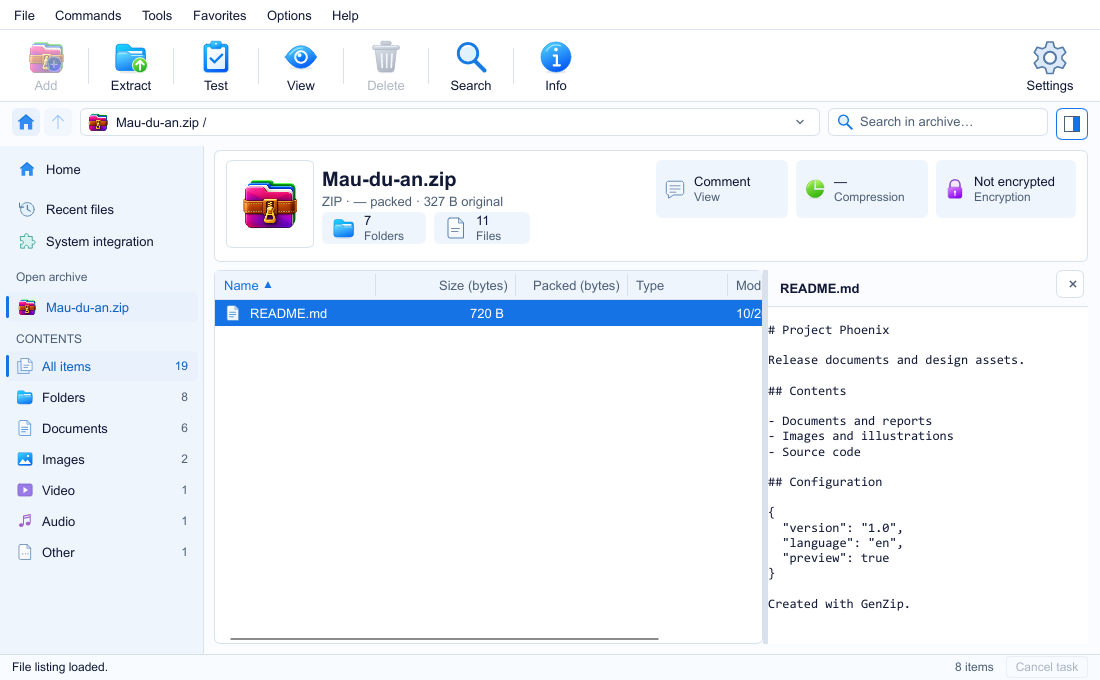
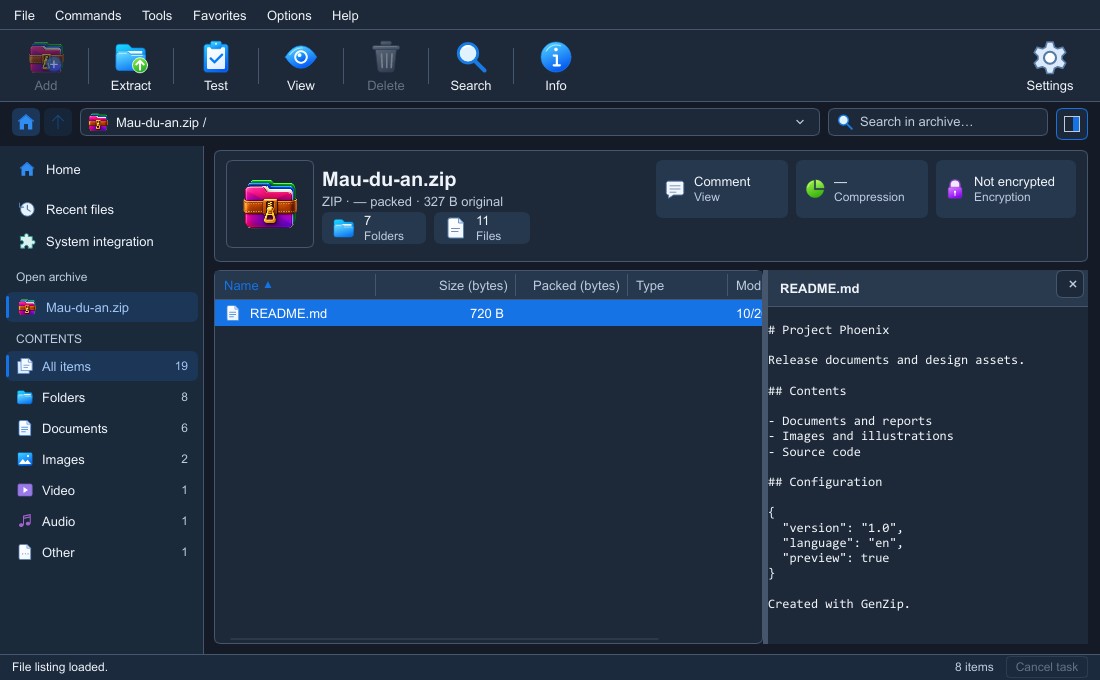
Find files, explore the structure and see archive information on the main screen.
Start from Home
Drop a file or click to choose one; create an archive, open an archive and access recent files.
Toolbar actions
Add, Extract, Test, View, Delete, Rename, Search, Info and Settings.
Paths & filters
Archive path bar and search box. The sidebar includes Quick access and Open archive; filter All, Folders, Documents, Images, Video, Audio and Other.
Content columns
Name, Size, Packed, Type and Modified; optionally show Ratio and CRC32.
Archive overview
Name, format, packed and original sizes, folder and file counts; Comment when present, Compression % and Encryption cards.
Menus & favorites
File, Commands, Tools, Favorites, Options and Help. Add and organize favorites; open the queue, log folder, settings, language, theme, About and Support the author.
Preview & edit inside archives
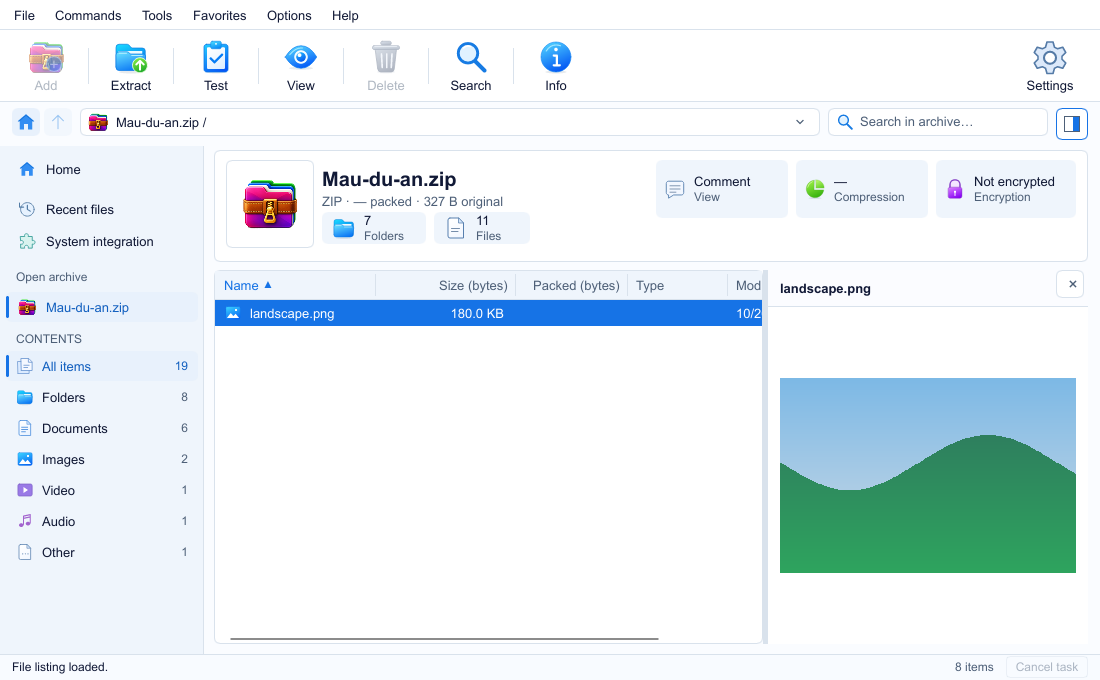
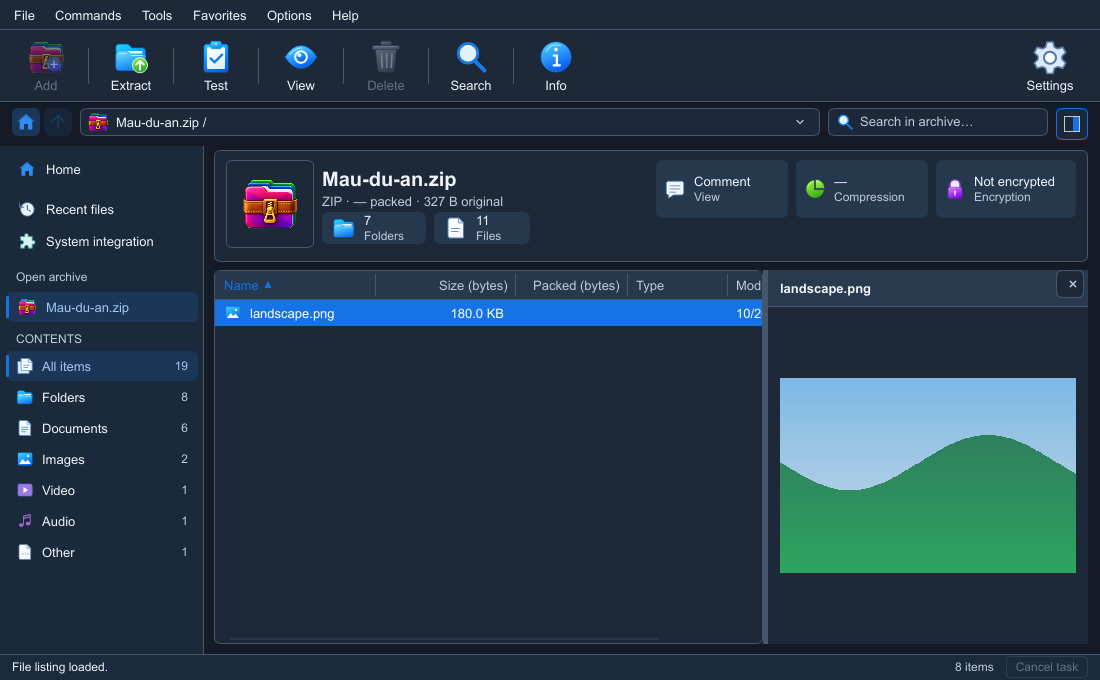
Preview content before opening it and edit ZIP, 7Z and TAR archives directly.
Preview with F3
Images up to 20 MB; the first 64 KB of text. Other file types show an information card.
Add, delete & rename
Add files or folders to an open ZIP, 7Z or TAR. Delete with Delete and rename with F2; existing data is not recompressed.
Confirm drag and drop
Drag files into the window to add them to the archive; GenZip asks for confirmation first.
Keep the original
Cancelling an edit or encountering an error leaves the original archive intact.
Open in the default app
Open a file inside an archive using its default Windows application.
Confirm risky files
Files that can run code, such as HTML, EXE and JS, require confirmation before opening.
Create archives
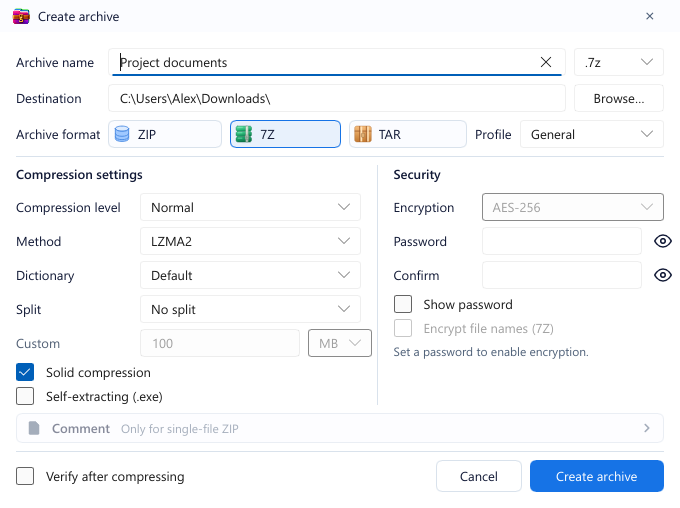
One page with two columns for compression and security. Defaults: ZIP, level 5, Deflate, no splitting and no encryption.
Name, location & presets
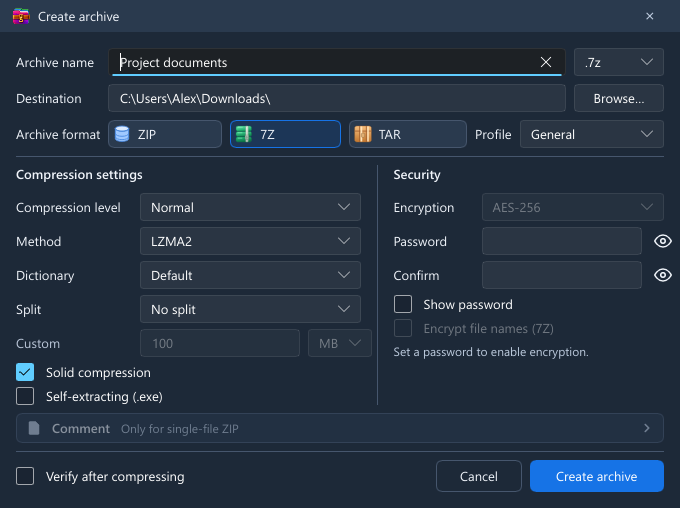
Choose a name and .zip / .7z / .tar / .exe extension, and Browse for a destination. ZIP / 7Z / TAR format cards; General / Maximum compression / Fast / Store presets.
Level & dictionary
Store or levels 1–9; Normal = 5, Maximum = 9. Dictionary size is configurable.
Methods by format
ZIP: Deflate / Store. 7Z: LZMA2 / LZMA / Store. TAR: Store.
Split volumes
No splitting / 100 MB / 700 MB / 4 GB FAT32, or a custom number in MB / GB.
Solid & self-extracting
Solid compression for 7Z. Create a self-extracting .exe only from unsplit 7Z, using the official 7-Zip SFX module.
Encryption by format
ZIP offers ZipCrypto or AES-256; 7Z offers AES-256 with a Encrypt file names (7Z) option.
Password entry
Password and confirmation fields have eye buttons; a Show password option is available.
ZIP comments
Edit a comment in a separate window; available for single-file ZIP only.
Verify after compression
Test the new archive using the same password. Choose Create archive to start or Cancel to close.
Extract archives
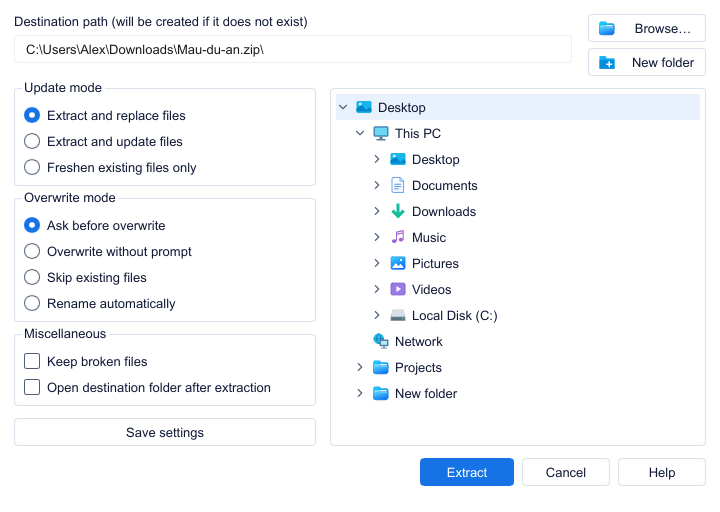
Choose a destination and file handling rules before starting, or extract only the selected items.
Choose a destination
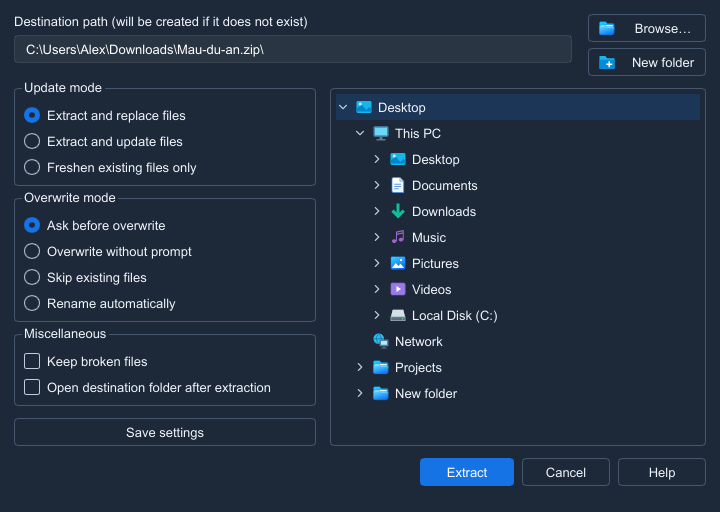
Browse, destination history, a folder tree with This PC / Desktop / Documents / Downloads and more, plus New folder.
Three update modes
Extract and replace; Extract and update (newer or new files only); Freshen existing files only.
Four overwrite modes
Ask before overwrite / Overwrite without prompt / Skip existing files / Rename automatically.
Keep broken files
An option lets you keep broken files during extraction.
Save your choices
Open the destination folder after extraction and save extraction settings.
Selection & passwords
Extract selected items when a selection exists. A password dialog appears when needed.
Progress, queue & results
Follow active work, pause in the engine and queue subsequent operations.
Detailed progress
Overall and current file progress, processed amount, n/N files, elapsed time, speed, time remaining and savings during compression.
Run in background
The Run in background button is in the progress window: minimize it and show a percentage on the taskbar icon.
Real pause
Pause / Resume pauses work in the engine. You can also cancel the operation.
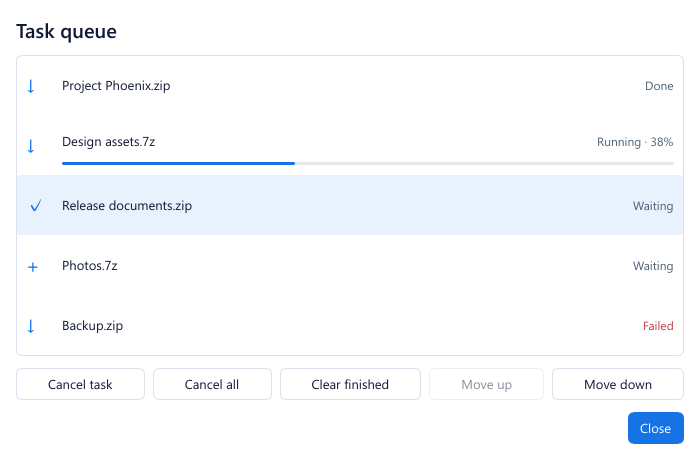
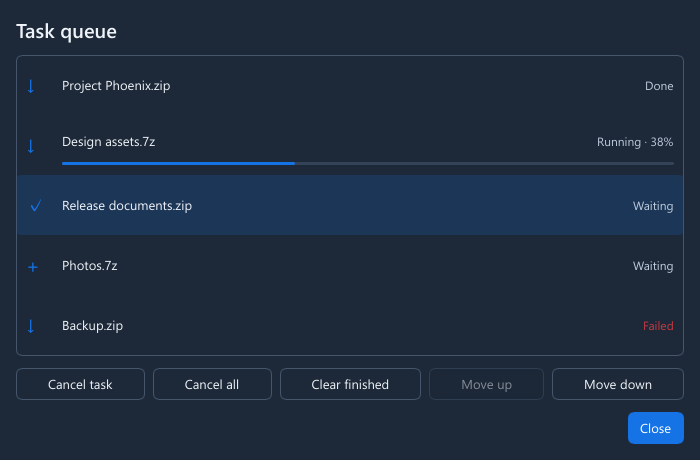
Sequential task queue
Issue commands while busy to queue them. Cancel one or all, remove completed entries and move tasks up or down in the queue window.
Resolve file conflicts
Replace / Skip / Keep both / Rename… / Stop, with an Apply to all option.
Clear results
Success / partial / error / stopped, with figures, Error details, Copy details and Open folder.
Test & information
Check archive integrity and keep a report to review later.
Integrity testing
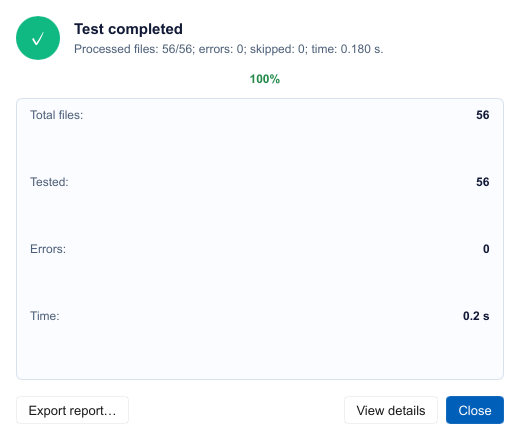
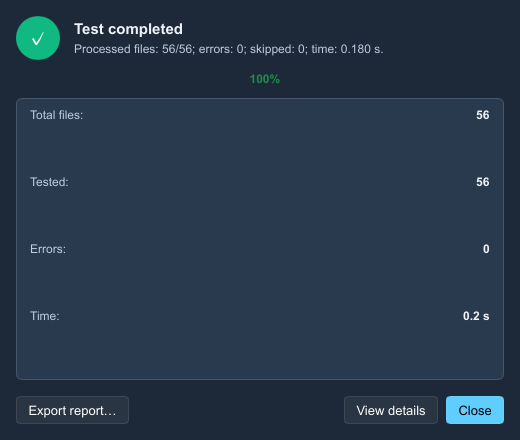
Total files, Tested, Completed, Errors, Skipped and Time.
Export a .txt report
Export the test report as a .txt file or choose View details.
Archive information
Original and packed sizes, file and folder counts, encryption and percentage saved; Copy information is available.
Safety
Extraction safeguards and a private experience in the Microsoft Store build.
Block dangerous paths
Blocks dangerous paths such as ../ and Windows device names.
Extraction limits
Limits for entry count, expansion ratio, size and folder depth.
Keep Mark of the Web
Preserves the Internet origin mark on extracted files, with controls in security settings.
Privacy in the Store build
No network connections, no ads and no account required.
Windows integration & settings
Right-click commands in Windows and a separate settings window to tailor your workflow.
Windows 11 top-level menu
Open with GenZip; Extract files…; Extract here; Extract to "<name>\"; Add to archive…; Add to "<name>.zip"; Add to "<name>.7z".
Classic menu
Quick compress to ZIP/7Z; Extract to a folder with the same name.
Windows manages associations
File associations and the right-click menu are included in the Store package. Choose GenZip in Windows Default apps; the app cannot set itself as default. Extensions: .zip .7z .rar .tar .gz .bz2 .xz .zst .iso .cab .wim .001.
General
Language, recent file history and item count, clear history, list view style and visible columns.
Compression & extraction
Default format, level 0–9 and compression method. Extraction destination: beside the archive / fixed folder / ask; existing file handling and opening the folder after extraction.
Appearance & security
System / Light / Dark, accent color and icon style. Security settings include keeping Mark of the Web and safety limits.
Integration & updates
Integration says Windows manages the Microsoft Store build. Updates says Microsoft Store provides updates; there are no update channels or check button.
Advanced
Thread count, temporary folder, log level and a custom 7z.dll under the LGPL.
Supported formats
Read and extract formats supported by the 7-Zip 26.05 core. Create and edit ZIP, 7Z and TAR only; RAR creation is not supported.
| Format | Read / extract | Create | Edit | Encrypt |
|---|---|---|---|---|
| RAR4/RAR5 | Yes | No | No | No |
| ZIP | Yes | Yes | Yes | ZipCrypto / AES-256 |
| 7z | Yes | Yes | Yes | AES-256; encrypt file names |
| TAR | Yes | Yes | Yes | No |
| GZ | Yes | No | No | No |
| BZ2 | Yes | No | No | No |
| XZ | Yes | No | No | No |
| ZST | Yes | No | No | No |
| ISO | Yes | No | No | No |
| CAB | Yes | No | No | No |
| WIM | Yes | No | No | No |
| Split archives .001 / .zip.001 / .7z.001 | Yes | No | No | No |
Edit = add, delete and rename inside an archive. In addition to the formats above, GenZip reads and extracts 7Z self-extracting .exe files, and can create them from unsplit 7Z.
Basic command-line support.
Coming soon
These features are not available in GenZip 0.9.0-beta.1.
macOS & Linux
Coming soon: versions for macOS and Linux.
Memory usage modes
Coming soon: Economy / Balanced / Maximum, using RAM to read data ahead.
More to come
Coming soon: in-app speed tests and damaged archive repair.