Archives attached to emails or downloaded from the web are one of the most common ways malware spreads. Opening an archive to look at its list is not dangerous in itself; the risk lies in the files inside and where they get extracted. GenZip has several protections built in; the rest comes down to habits.
What GenZip protects automatically
Blocks dangerous paths. An archive can be crafted with names like ../../Windows/... to write files outside the folder you chose. GenZip blocks such paths, as well as special Windows device names (like CON, NUL).
Limits “zip bombs”. Some archives are a few KB but expand to hundreds of GB and fill your disk. GenZip applies safety limits on item count, expansion ratio, total size and folder depth when extracting.
Keeps the Mark of the Web. When you extract a file downloaded from the Internet, Windows still knows the extracted files came from the web, so SmartScreen and Office keep warning you as usual.
Asks before opening files that can run code. If you double-click an .exe, .js, .html… inside an archive, GenZip asks before opening it.
Good habits
- Look before you extract. Open the archive and check the list. An “invoice” containing
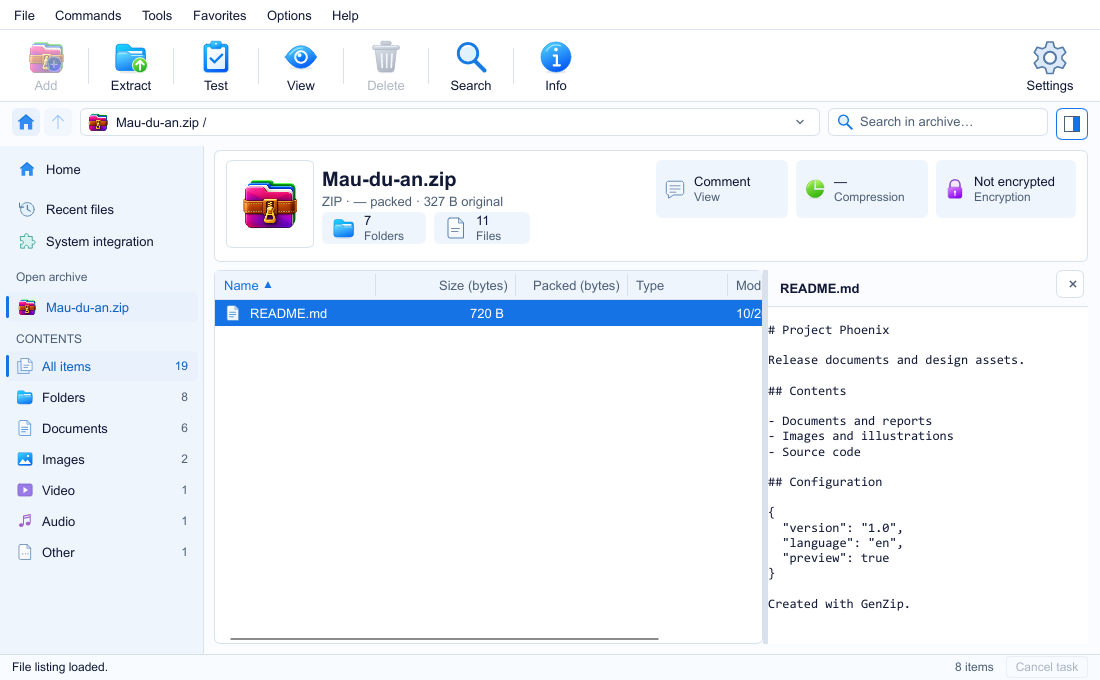
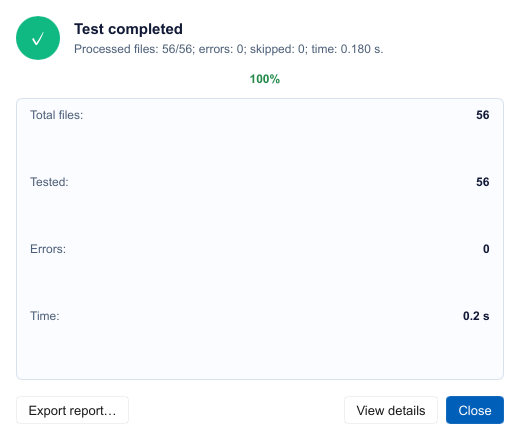
invoice.pdf.exeor a.jsfile is almost certainly a scam. Images and text can be previewed with F3 without extracting. - Test before you rely on it. The Test button on the toolbar reads the whole archive and reports errors if it is damaged or incompletely downloaded. You can Export report as
.txt. - Be wary of password-protected archives from strangers. Attackers often add a password so antivirus software can’t scan inside. If you weren’t expecting it, don’t open it.
- Don’t switch off Windows warnings just to open a file faster.
Where to get GenZip safely
GenZip itself can be faked. GenZip is only released through the Microsoft Store; there is no free-floating installer. Any site offering a “GenZip.exe” download is not ours.
See also: Test an archive and the FAQ.