
Open an archive
- Drop a file onto GenZip Home or click the selection area to choose a file.
- Click Open archive… on Home.
- Use Open with GenZip in Explorer’s right-click menu.
GenZip reads and extracts ZIP, 7Z, RAR/RAR5, TAR, GZ, BZ2, XZ, ZST, ISO, CAB, WIM, split archives such as .7z.001 and .zip.001, and self-extracting .exe archives made from 7Z.
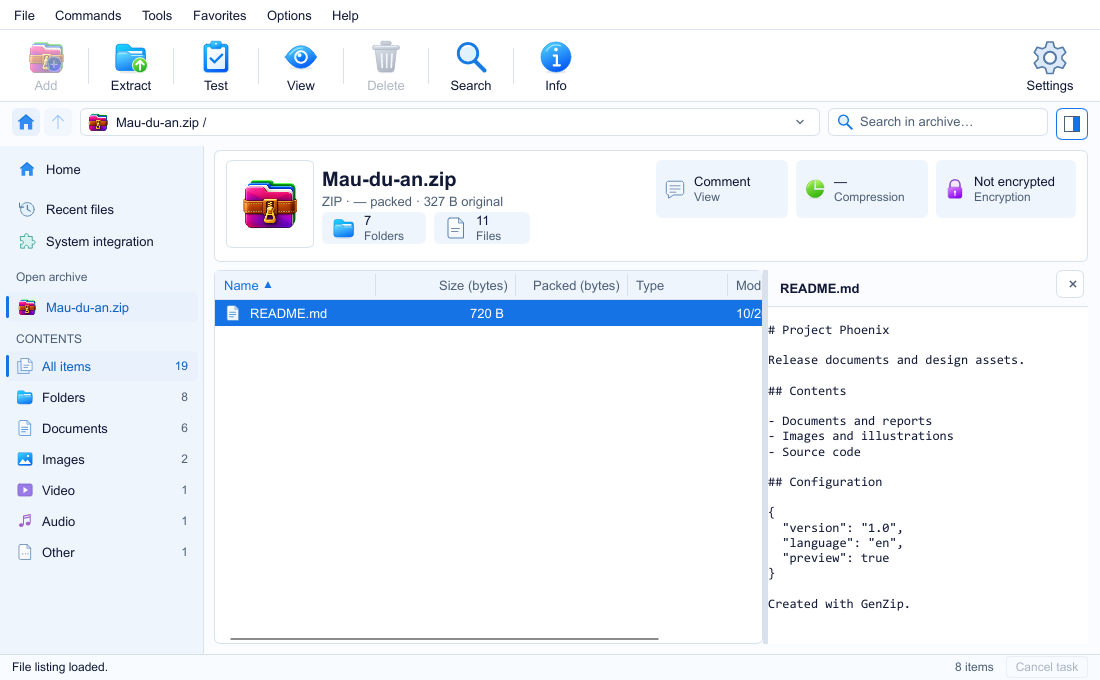
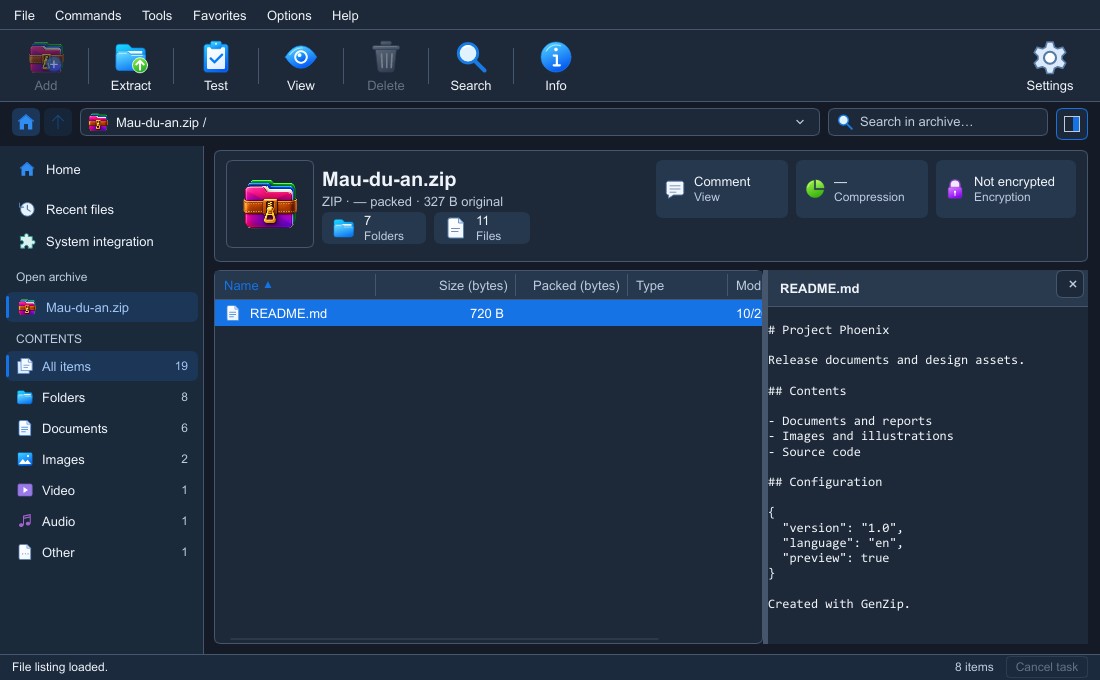
Browse and search
- Use the path bar inside the archive and the Search in archive box.
- The sidebar has Quick access, Open archives and type filters: All items, Folders, Documents, Images, Video, Audio, Other.
- The table has Name, Size, Packed, Type, Modified columns, with optional Ratio, CRC32 columns.
- The archive header shows its name, format, packed/original size and folder/file counts, with a Comment card when a comment exists.
Select the items you need before clicking Extract to extract only the selection.
Preview and open files
F3 opens the preview pane: images up to 20 MB, the first 64 KB of text, and an information card for other types.
You can open an archived file with its default app. For files that can run code, such as HTML, EXE or JS, GenZip asks for confirmation before opening them.
Edit an open archive
For ZIP, 7Z and TAR, you can Add files/folders, drag them into the window (with confirmation), Delete with Delete or Rename… with F2. Existing data is not recompressed; cancellation or an error leaves the original archive unchanged.