
Extract from Explorer
Right-click an archive and choose:
- Extract here: extract at the archive’s location.
- Extract to “<name>\”: extract into a folder named after the archive.
- Extract files…: open the dialog to choose a destination and modes.
Using the Extract dialog
- Open the archive. Select items if you only need some of them; GenZip extracts the selected items when there is a selection.
- Click Extract on the toolbar.
- Choose the Destination: enter a path, use Browse…, destination history or the folder tree (This PC, Desktop, Documents, Downloads…). Use New folder if needed.
- Choose the Update mode and Overwrite mode described below.
- Click Extract. Enter the password when the Password dialog appears.
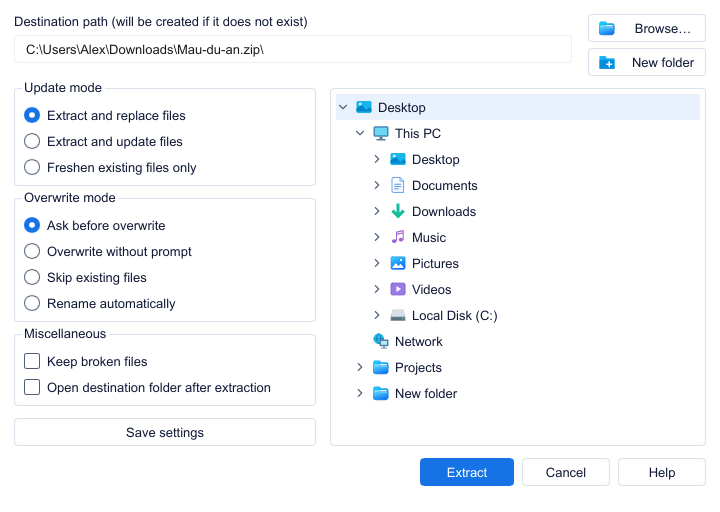
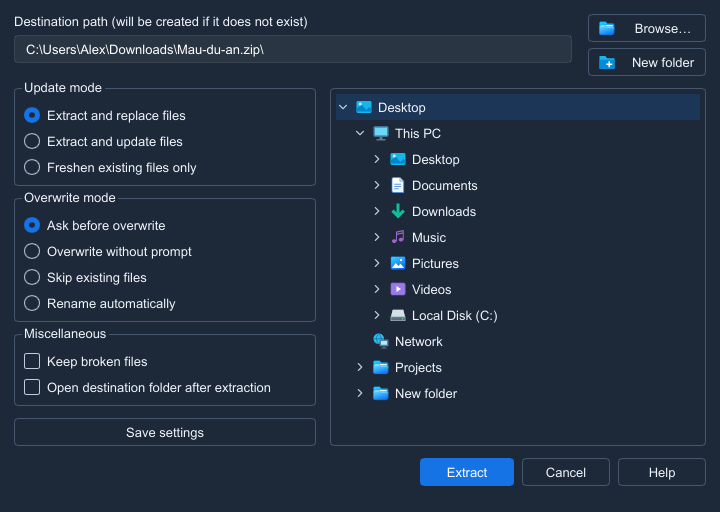
Update mode
- Extract and replace files.
- Extract and update files: extract only newer or new files.
- Freshen existing files only.
Overwrite mode
- Ask before overwrite.
- Overwrite without prompt.
- Skip existing files.
- Rename automatically.
More options
- Keep broken files.
- Open destination folder after extraction.
- Save settings to save your choices.
When files already exist
With Ask before overwrite, the File already exists dialog offers Replace, Skip, Keep both, Rename…, Stop and an option to apply the choice to all files.
Safety and progress
GenZip blocks dangerous paths such as ../ and device names, applies limits on entry count, expansion ratio, size and depth during extraction, and preserves Mark of the Web.
The progress window offers Run in background, Pause/Resume and Cancel.